

Prerequisites
- A Twilio account with at least one phone number
- A Cartesia account with an API key
Set up
Step 1: Create a Twilio subaccount (recommended)
A dedicated subaccount keeps the numbers and credentials you share with Cartesia separate from the rest of your Twilio setup.- Open the Twilio Console.
- Go to Account → Subaccounts → Create new Subaccount.
- Name it, for example
cartesia-production. - Copy the Account SID.
Step 2: Create an API key
Create a Standard API key in your subaccount. API keys can be rotated independently, which auth tokens cannot.- In your subaccount, go to Account → API keys & tokens, or open the create page directly.
- Click Create API Key and choose Standard.
- Save the SID and Secret in a password manager.
Step 3: Connect your Twilio account
Cartesia validates the credentials against Twilio before saving them.- Playground
- API
- Go to Phone Numbers, click Add Number, then Import from Twilio.
- Select Link new account.
- Enter your Account SID, API Key SID, API Key Secret, and region.
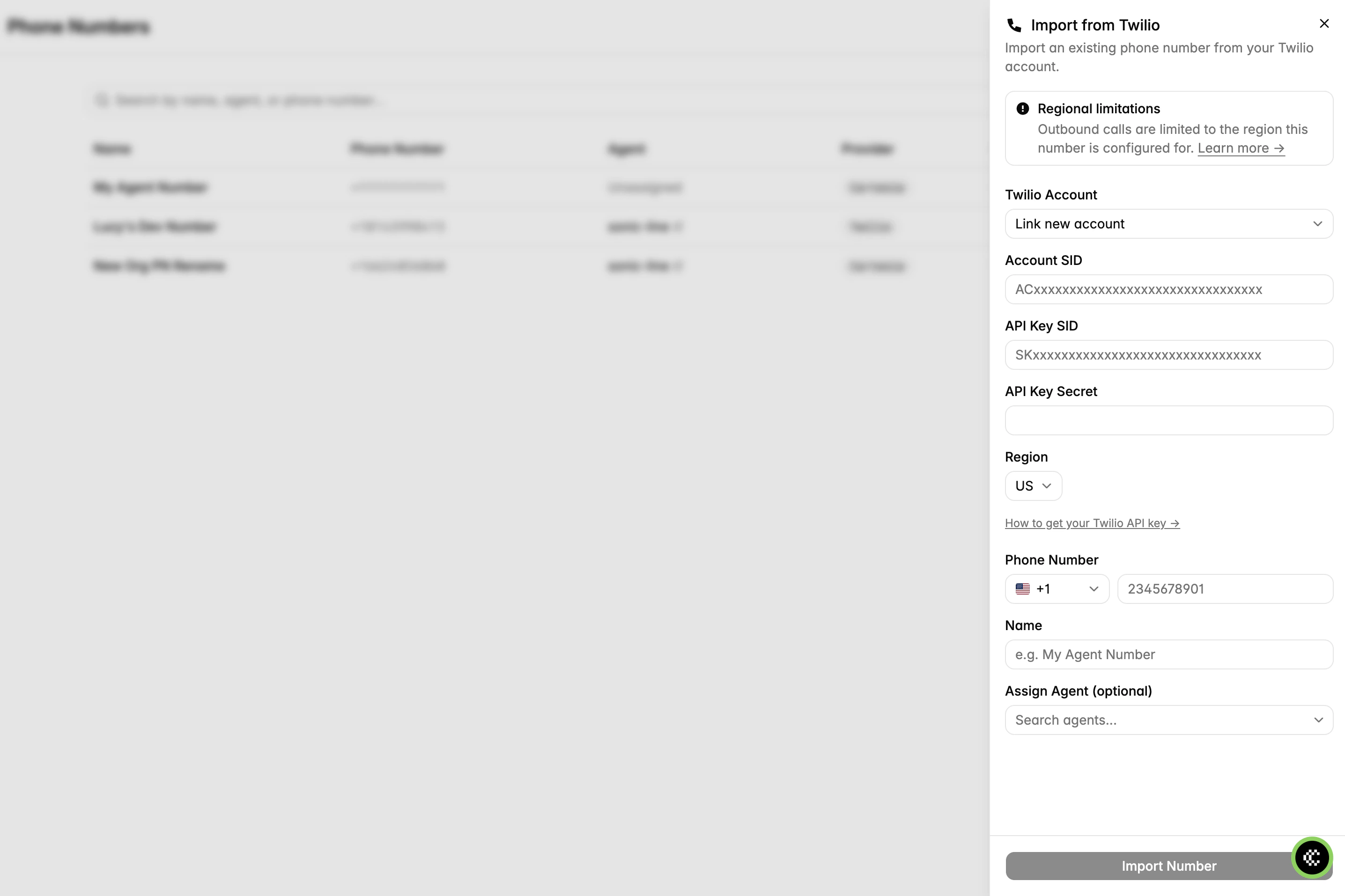
Import from Twilio panel with Link new account fields
Step 4: Import a phone number
The number must already exist in your Twilio account. Cartesia does not purchase numbers on your behalf.- Playground
- API
- In the Import from Twilio panel, enter the phone number with its country code, for example
+14155551234. - Give it a name.
- Optionally assign an agent. You can also do this later.
Step 5: Assign an agent
Inbound calls on the number are routed to the agent you assign. Assign it from the number’s detail page in the Playground or through the Phone Numbers API. One agent can handle several numbers, for example a US line and a UK line.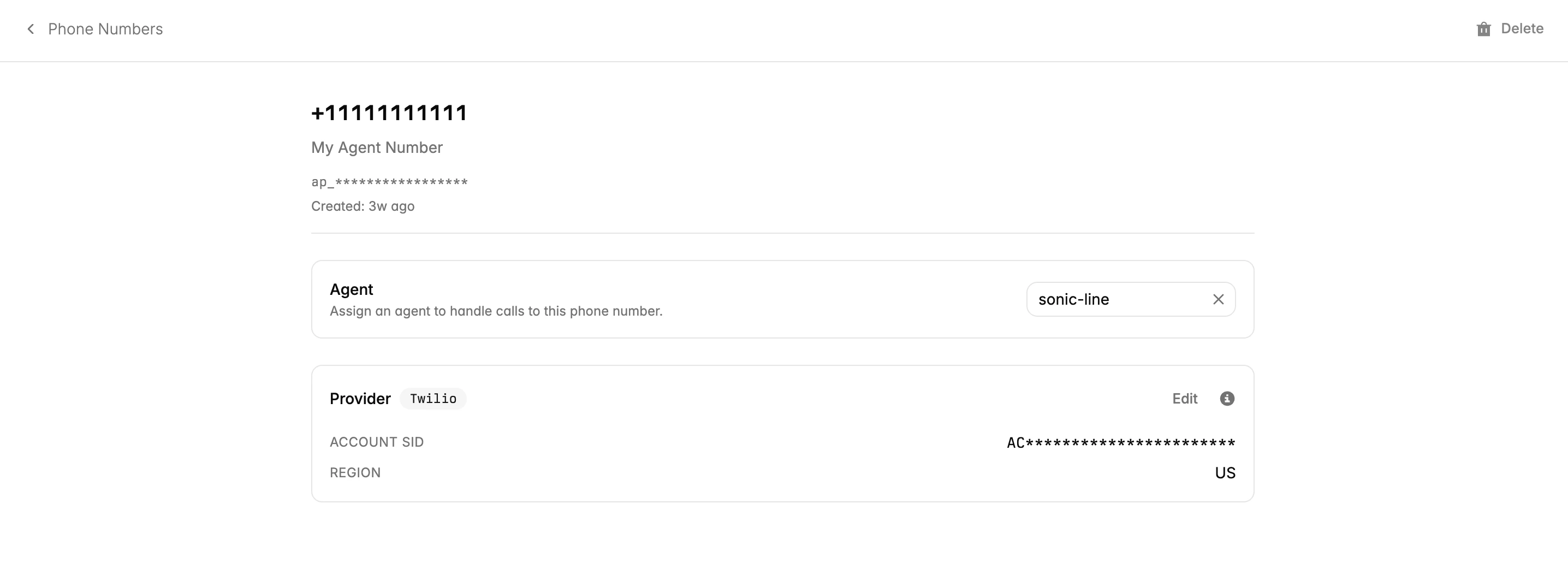
Phone number detail page with agent assignment
Outbound calls
Your agent can call any phone number, including international numbers at your Twilio rates. Use the imported number asfrom_number_id when you place an outbound call.
Outbound calls use the credentials of the number’s provider. A us1 provider routes through Twilio’s US edge, and an ie1 provider routes through Ireland. See Regional routing.
Rotate credentials
Rotate your Twilio API key without downtime:- Create a new API key in Twilio, as in Step 2.
- Update the provider in Cartesia. Cartesia validates the credentials and verifies each number assigned to an agent before saving.
- Revoke the old key in the Twilio console.
- Playground
- API
- Go to Phone Numbers → Settings.
- Under Twilio Accounts, click the edit button for the provider.
- Enter the new API Key SID and secret, then click Update credentials.
Recover after revoking a key
If you already revoked the stored key, create a replacement under the same Twilio Account SID. Delete from Cartesia any numbers already released from Twilio, then update the provider:- Open the released number in Phone Numbers.
- Click Delete. You do not need to unassign its agent first.
- Repeat for each released number, then update the provider credentials.