TrueFoundry AI Gateway is the proxy layer that sits between your applications and the LLM providers and MCP Servers. It provides a unified OpenAI-compatible API to route requests across 1000+ LLMs while handling observability, governance, and access control at the gateway level.Cartesia is available as a first-party provider in TrueFoundry’s AI Gateway for TTS and STT. Register Cartesia models in the gateway, then call them with the Cartesia Python SDK and your TrueFoundry API key.
Follow these steps to connect Cartesia in AI Gateway:
1
Navigate to Cartesia Models in AI Gateway
In the TrueFoundry dashboard, go to AI Gateway → Models and select Cartesia. See TrueFoundry Cartesia setup for the full navigation path.
2
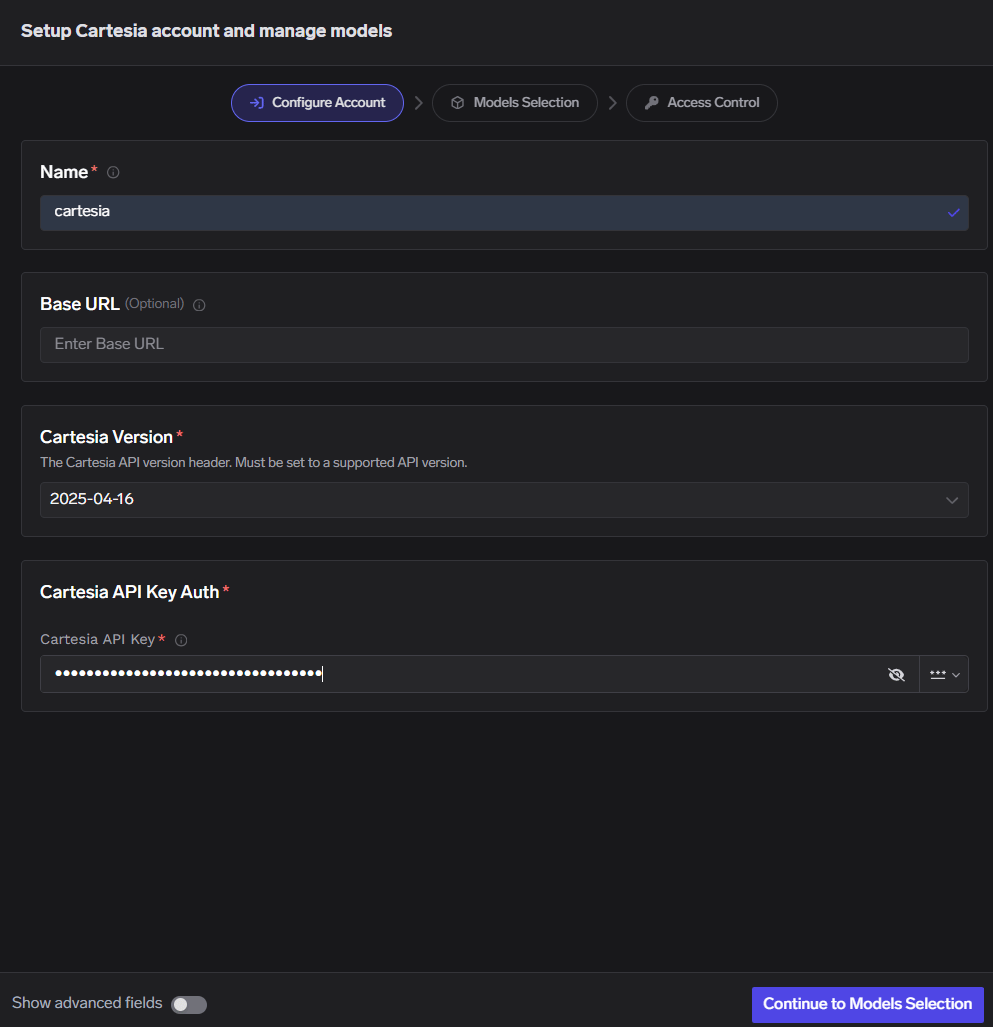
Add Cartesia Account Details
Click Add Cartesia Account. Enter a unique account name and your Cartesia API Key. Optionally add collaborators so other users or teams can use this account — see gateway access control.
Cartesia Model Account Form
3
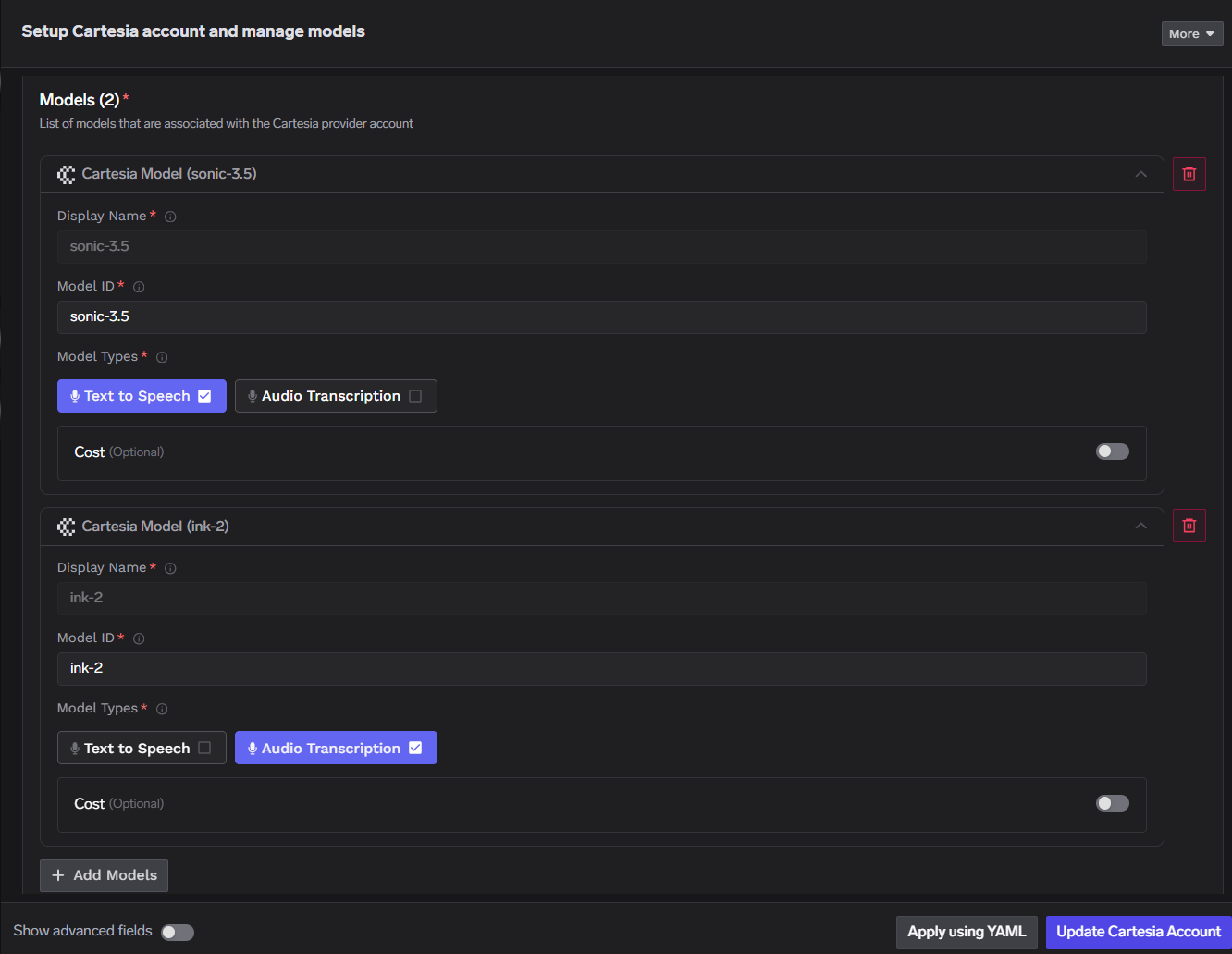
Add Models
Click + Add Model and set Display name, Model ID, and Model type.
Add Cartesia Model
For Cartesia, Model ID and Display name must be identical.
Point AsyncCartesia at your gateway TTS route. Replace GATEWAY_BASE_URL, cartesiaProviderAccountName, TFY_API_KEY, and model_id with values from your TrueFoundry workspace.
import asyncioimport httpxfrom cartesia import AsyncCartesiaTFY_API_KEY = "your-tfy-api-key"BASE_URL = "{GATEWAY_BASE_URL}/tts/{cartesiaProviderAccountName}"OUTPUT_FILE = "/path/to/output.wav"client = AsyncCartesia( api_key="dummy", # gateway auth uses x-tfy-api-key, not Cartesia api_key base_url=BASE_URL, http_client=httpx.AsyncClient( headers={"x-tfy-api-key": TFY_API_KEY}, ),)async def main(): response = await client.tts.generate( model_id="sonic-3.6", # must match a model ID registered in AI Gateway transcript="Welcome to Cartesia Sonic!", voice={"mode": "id", "id": "a0e99841-438c-4a64-b679-ae501e7d6091"}, language="en", output_format={ "container": "wav", "sample_rate": 44100, "encoding": "pcm_s16le", }, ) with open(OUTPUT_FILE, "wb") as f: f.write(await response.read()) print(OUTPUT_FILE)asyncio.run(main())
Parameter
Type
Description
GATEWAY_BASE_URL
string
Gateway base URL from TrueFoundry (no trailing slash)
cartesiaProviderAccountName
string
Cartesia provider account name under AI Gateway → Models → Cartesia
TFY_API_KEY
string
TrueFoundry API key sent as the x-tfy-api-key header
model_id
string
Cartesia model ID; must match Model ID and Display name in the gateway
Register an STT model type in the gateway, then point AsyncCartesia at your gateway STT route. Replace GATEWAY_BASE_URL, cartesiaProviderAccountName, TFY_API_KEY, and model with values from your TrueFoundry workspace.
import asyncioimport httpxfrom cartesia import AsyncCartesiaTFY_API_KEY = "your-tfy-api-key"BASE_URL = "{GATEWAY_BASE_URL}/stt/{cartesiaProviderAccountName}"AUDIO_FILE = "/path/to/audio.wav"client = AsyncCartesia( api_key="dummy", # gateway auth uses x-tfy-api-key, not Cartesia api_key base_url=BASE_URL, http_client=httpx.AsyncClient( headers={"x-tfy-api-key": TFY_API_KEY}, ),)async def main(): with open(AUDIO_FILE, "rb") as f: response = await client.stt.transcribe( file=f, model="ink-2", # must match a model ID registered in AI Gateway language="en", ) print(response.text)asyncio.run(main())
Parameter
Type
Description
GATEWAY_BASE_URL
string
Gateway base URL from TrueFoundry (no trailing slash)
cartesiaProviderAccountName
string
Cartesia provider account name under AI Gateway → Models → Cartesia
TFY_API_KEY
string
TrueFoundry API key sent as the x-tfy-api-key header
model
string
Cartesia STT model ID; must match Model ID and Display name in the gateway
AUDIO_FILE
string
Path to a local audio file (WAV, MP3, and other common formats)
After models are registered, open any Cartesia model in the TrueFoundry dashboard and use Code Snippet or Try in Playground to test TTS and STT requests before wiring them into your app.
TrueFoundry Cartesia setup
Dashboard walkthrough, model configuration, and inference examples.
Gateway access control
Share Cartesia provider accounts with collaborators and teams.