Community integration for Genesys Cloud. Last verified: 2026-06-11.
Genesys partners with Cartesia for text-to-speech in a few ways, one of which is the Genesys TTS Connector integration. This integration is configured in the Genesys Cloud.

Prerequisites

Genesys does not support Cartesia’s free subscription plan due to minimum concurrency requirements

Configure the Genesys TTS Connector with Sonic

1

Open the Genesys TTS Connector integration

If you did not previously install the integration into your Genesys Cloud organization, install the Genesys TTS Connector now.If you already installed the integration:
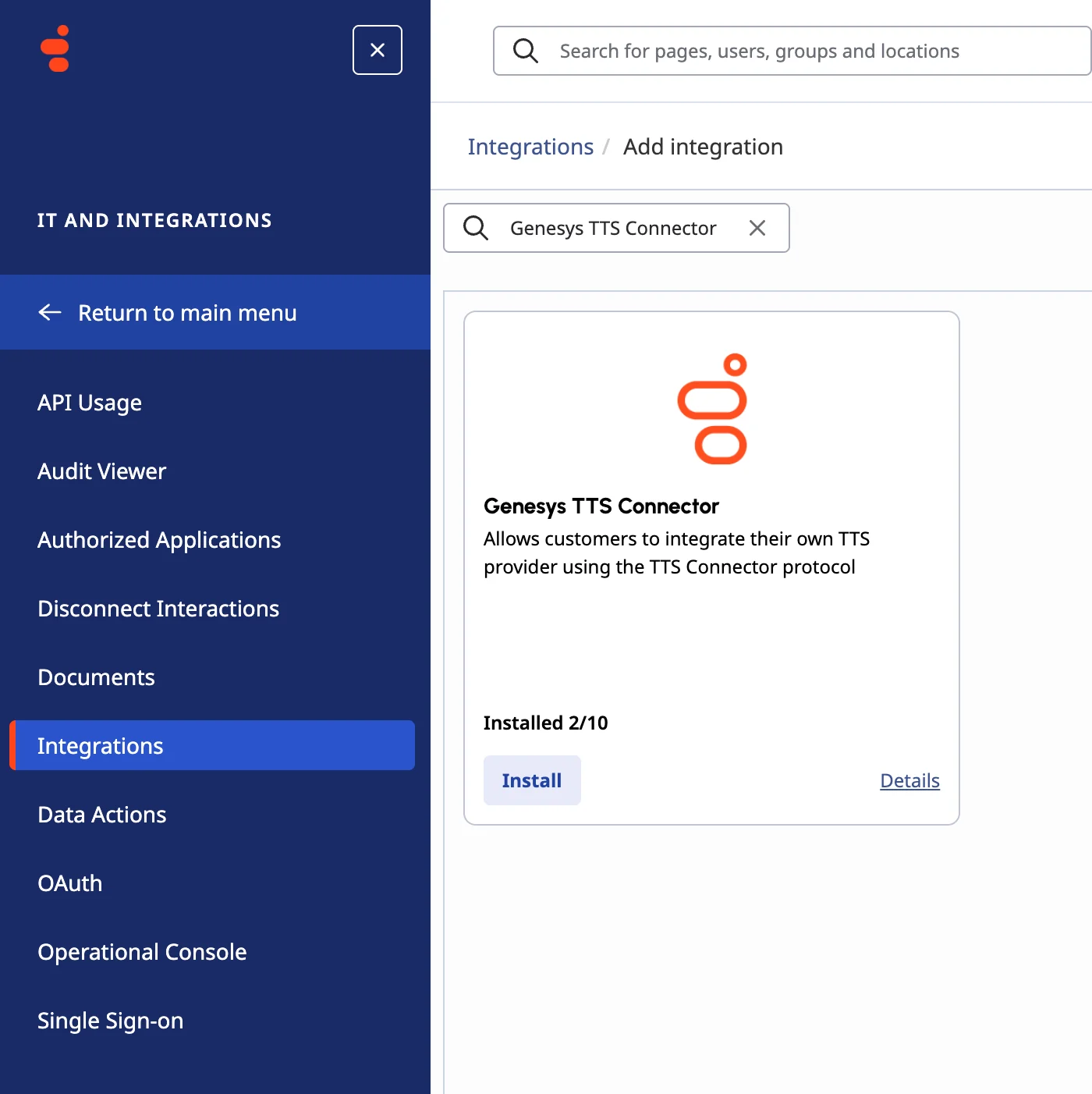
  1. Click Menu > IT and Integrations > Integrations.
  2. Search for and open the Genesys TTS Connector integration.
Genesys Cloud integrations page showing the Genesys TTS Connector integration
2

Name the integration

In the Details tab, enter a unique name for the integration. This can be anything you want, such as Genesys TTS Connector: Cartesia.
3

Open the Configuration tab

On the Genesys TTS Connector: Cartesia integration page, click Configuration.
4

Configure properties

Under Properties, enter these values:
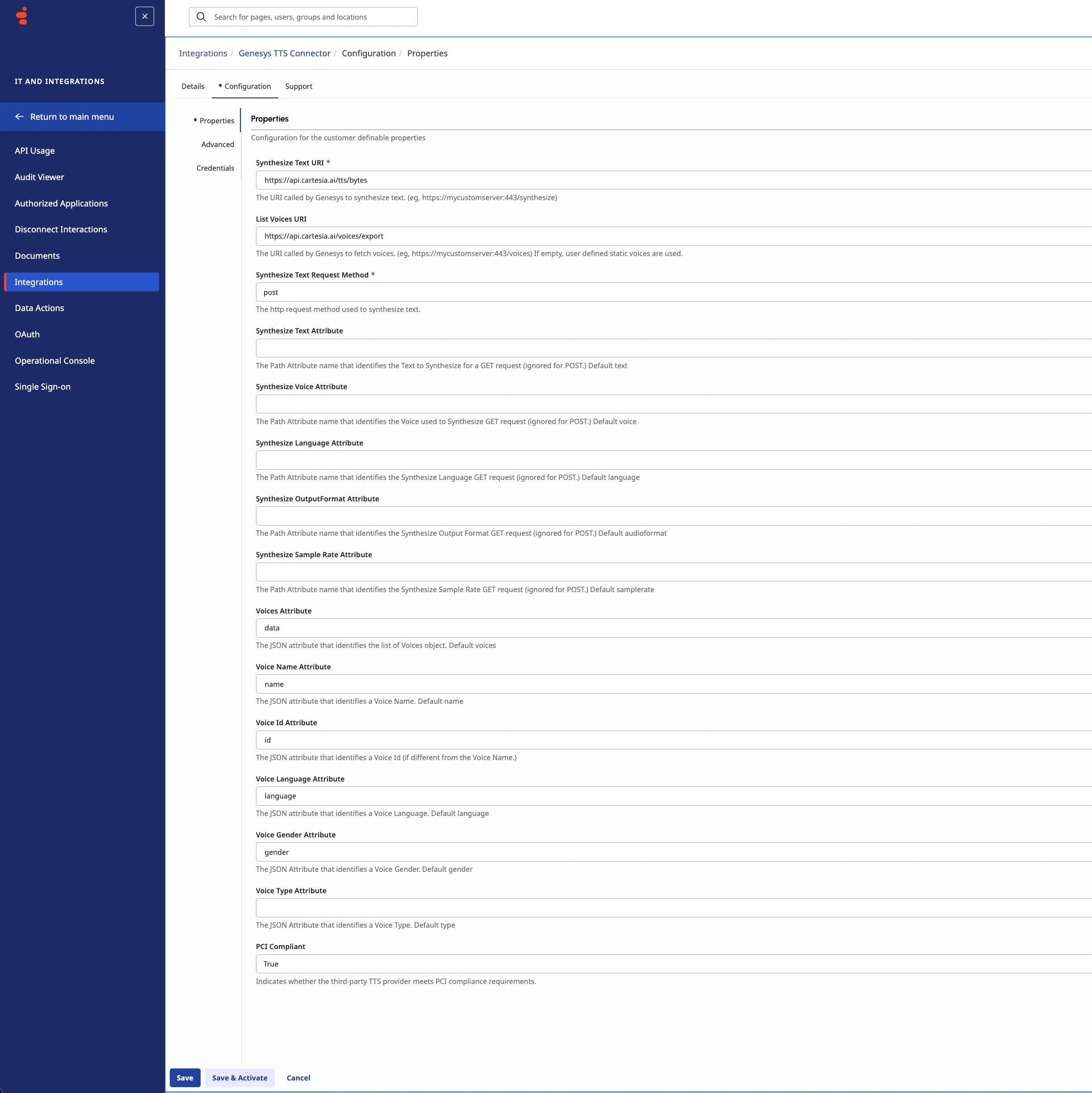
Property nameValue
Synthesize Text URIhttps://api.cartesia.ai/tts/bytes
List Voices URIhttps://api.cartesia.ai/voices/export
Synthesize Text Request Methodpost
Voices Attributedata
Voice Name Attributename
Voice Id Attributeid
Voice Language Attributelanguage
Voice Gender Attributegender
PCI CompliantTrue
  • Synthesize Text Attribute
  • Synthesize Voice Attribute
  • Synthesize Languages Attribute
  • Synthesize OutputFormat Attribute
  • Synthesize Sample Rate Attribute
  • Voice Type Attribute
Genesys TTS Connector properties configured for Cartesia
5

Set the advanced JSON configuration

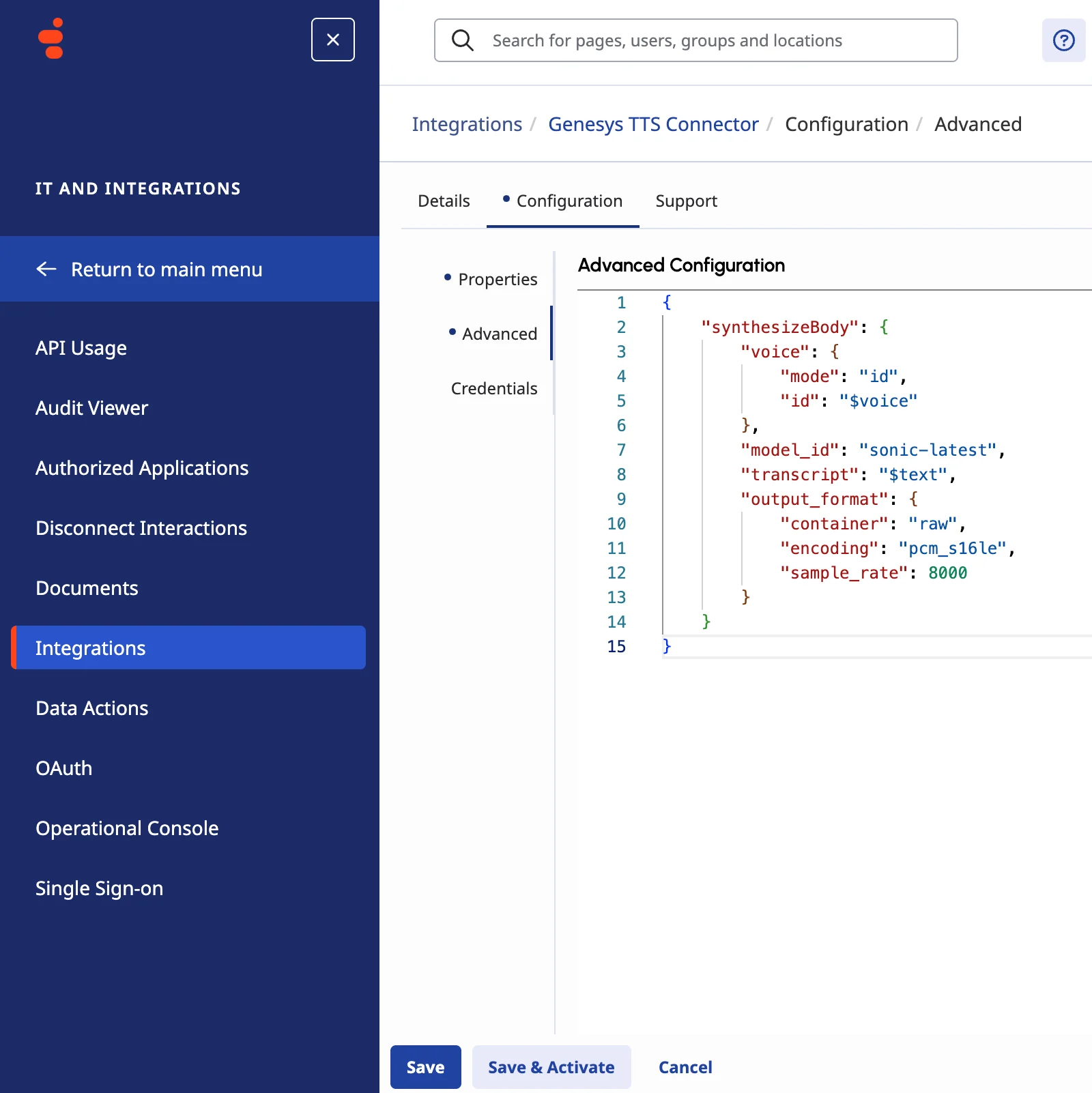
Click Advanced, then copy and paste this as the JSON configuration:
{
  "synthesizeBody": {
    "voice": {
      "mode": "id",
      "id": "$voice"
    },
    "model_id": "sonic-latest",
    "transcript": "$text",
    "output_format": {
      "container": "raw",
      "encoding": "pcm_s16le",
      "sample_rate": 8000
    }
  }
}
  1. If these settings generate garbled audio, come back and change output_format to match your telephony setup. See Output Format for details.
  2. Before using Sonic in production, change sonic-latest to a dated model snapshot from TTS models for stability.
Genesys TTS Connector advanced JSON configuration for Cartesia
6

Add credentials

  1. Click Credentials, then click Configure.
  2. In the Configure Credentials dialog, select Credential Type: User Defined.
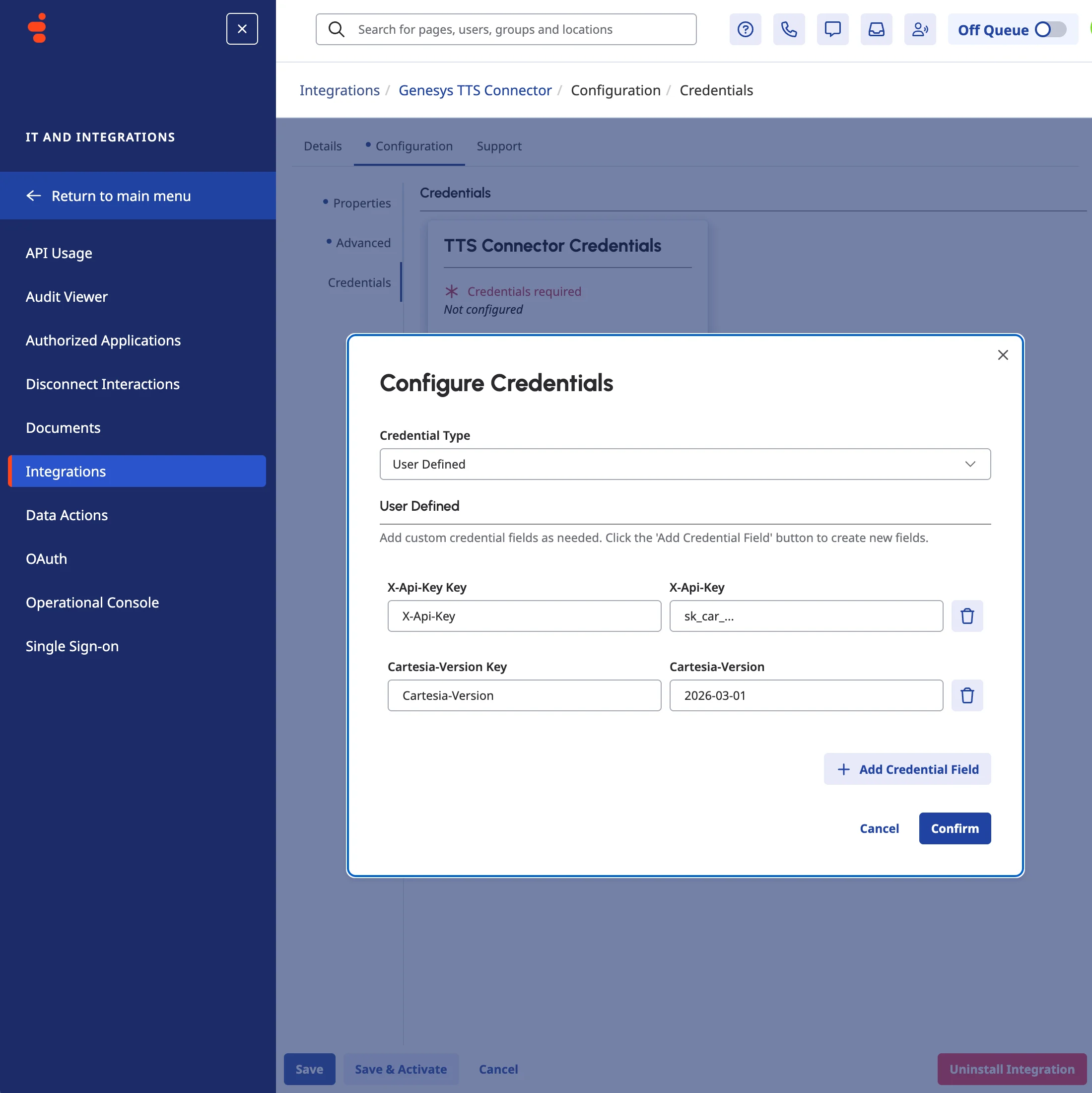
  3. Click Add Credential Field, then add these fields:
    KeyX-Api-Key
    X-Api-KeyYour API key from play.cartesia.ai/keys
    KeyCartesia-Version
    Cartesia-Version2026-03-01
  4. Click Confirm.
Genesys TTS Connector credentials configured with Cartesia API headers
7

Save and activate the integration

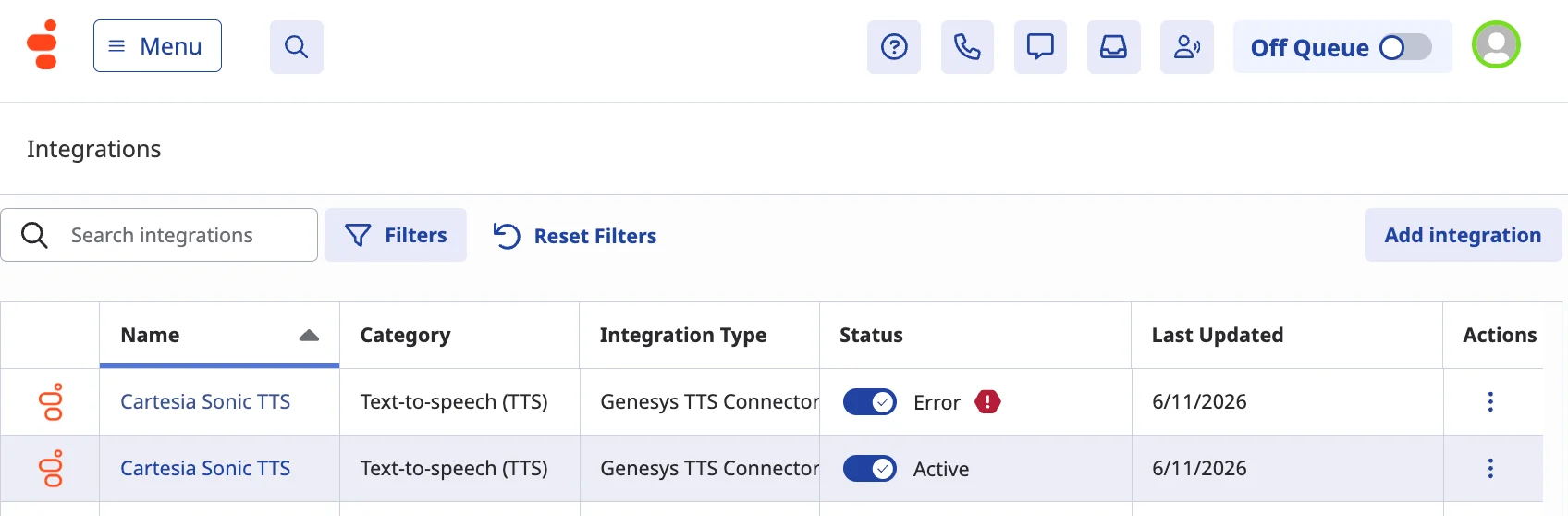
Click Save & Activate.Back on the Integrations page, your Genesys TTS Connector integration status should change to Active after a few seconds, or show an error.
Error messageWhat it means
You must be logged in to access this endpointX-Api-Key credential is incorrect
Invalid Cartesia-Version headerCartesia-Version credential is incorrect
quota_exceededYou need to upgrade your Cartesia subscription
Your request was invalidSomething is wrong with Configuration > Properties or Configuration > Advanced
Genesys TTS Connector integrations in an error and active state
8

Try out Sonic

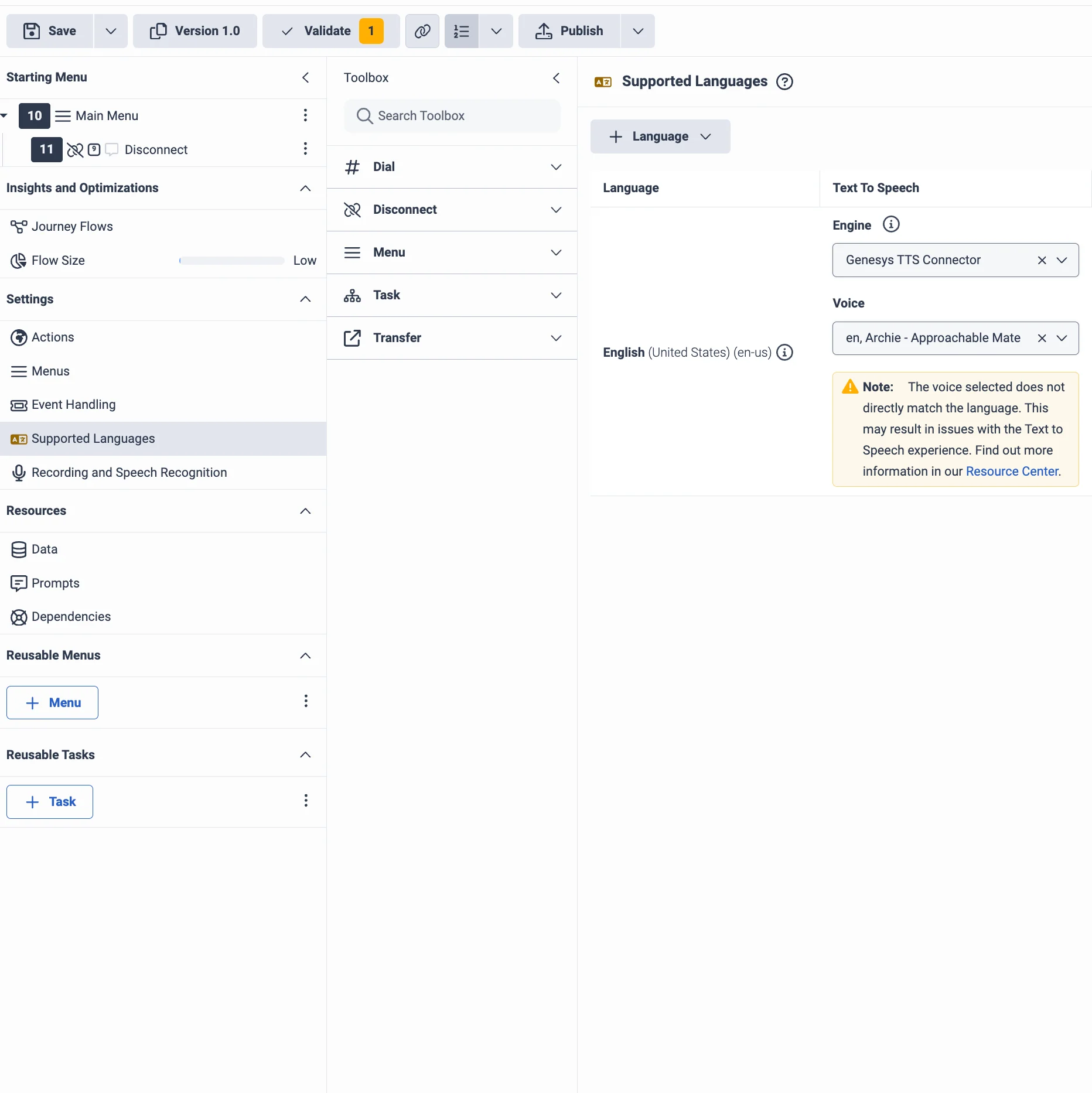
On the Genesys Cloud Architect page, select your newly configured integration and use it for a supported language.You can try out different voices on the Architect page, or on play.cartesia.ai/voices. See Choosing a Voice for tips.
If audio is garbled, you may need to change your output format to match your telephony setup:
  1. Read the output format guide
  2. Go back to step 5 and try a different output_format in Configuration > Advanced
Genesys Architect using Cartesia voices through the Genesys TTS Connector integration

Resources

Genesys TTS Engine

Genesys text-to-speech documentation

Genesys TTS Connector

Genesys integration documentation

Pricing

Cartesia’s subscription plans and their limits

Subscription

Manage your Cartesia subscription

API Keys

Create and manage Cartesia API keys

Output Format

How to find the right parameters for output audio

Choosing a voice

How to pick the best voice for your agents

Voice Library

Try out voices for Sonic in the Cartesia playground