> ## Documentation Index
> Fetch the complete documentation index at: https://docs.cartesia.ai/llms.txt
> Use this file to discover all available pages before exploring further.
# Knowledge Base
Knowledge bases let you augment your agent with domain-specific information it can retrieve on the fly. A few examples:
* **Frequently asked questions**: Equip your agent with answers to common customer questions
* **Employee handbooks**: Talk a new hire through PTO accrual, expense reimbursement, or open-enrollment deadlines.
* **Product catalogs**: Quote prices, configurations, and stock when a caller asks about an item by name or SKU.
* **Support runbooks**: Surface troubleshooting steps and known-issue workarounds for a tier-1 support agent.
## What does a knowledge base look like?
Documents you upload to Cartesia are organized into folders. Agents can be granted access to the contents of folders, which comprise the agent's knowledge base. Queries made by an agent only search documents in folders attached to that agent, so your organization can keep separate corpora for different agents without leaking content across them.
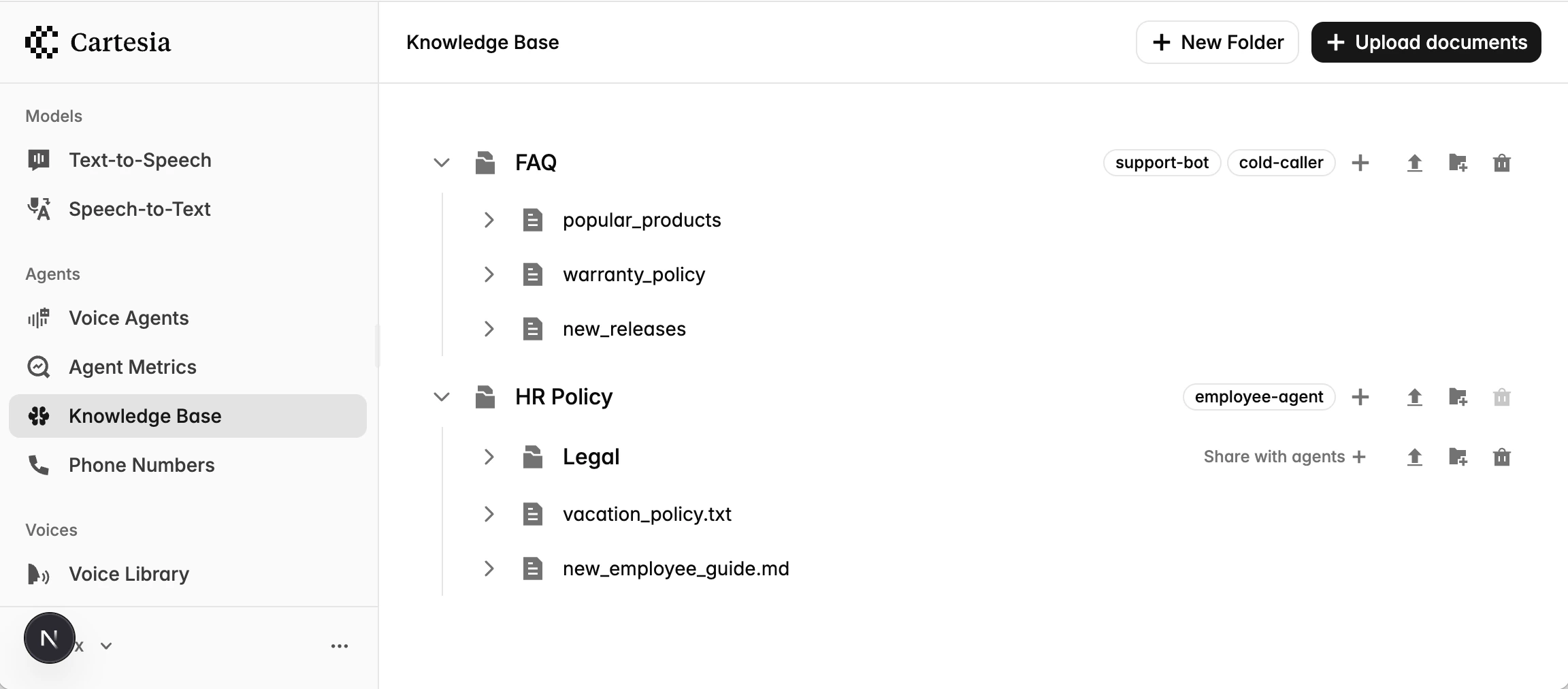 ## Upload documents
Create a folder, then add documents to it. Folders can be nested within parent folders.
## Upload documents
Create a folder, then add documents to it. Folders can be nested within parent folders.
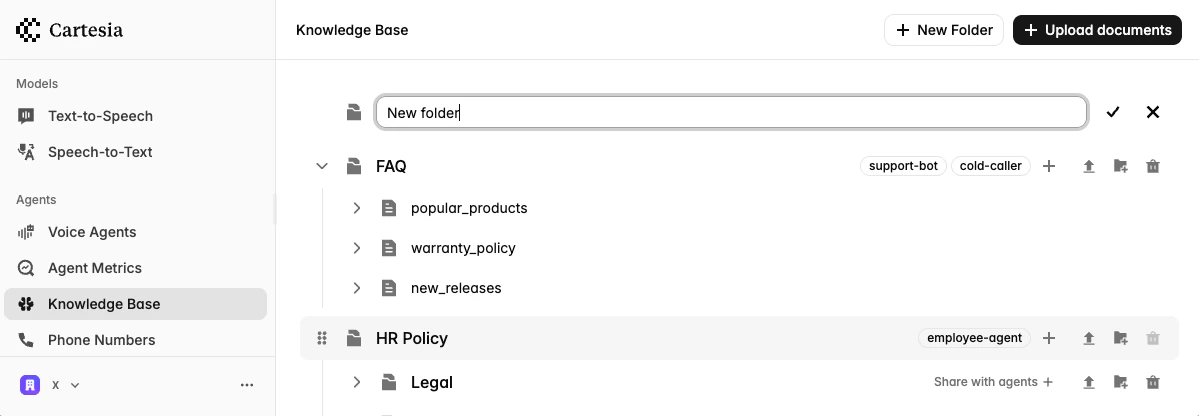 1. Go to **Knowledge Base** in the sidebar
2. Click **New folder** and enter a name
Folders can be nested by clicking the "Add subfolder" icon on the parent folder's row.
1. Go to **Knowledge Base** in the sidebar
2. Click **New folder** and enter a name
Folders can be nested by clicking the "Add subfolder" icon on the parent folder's row.
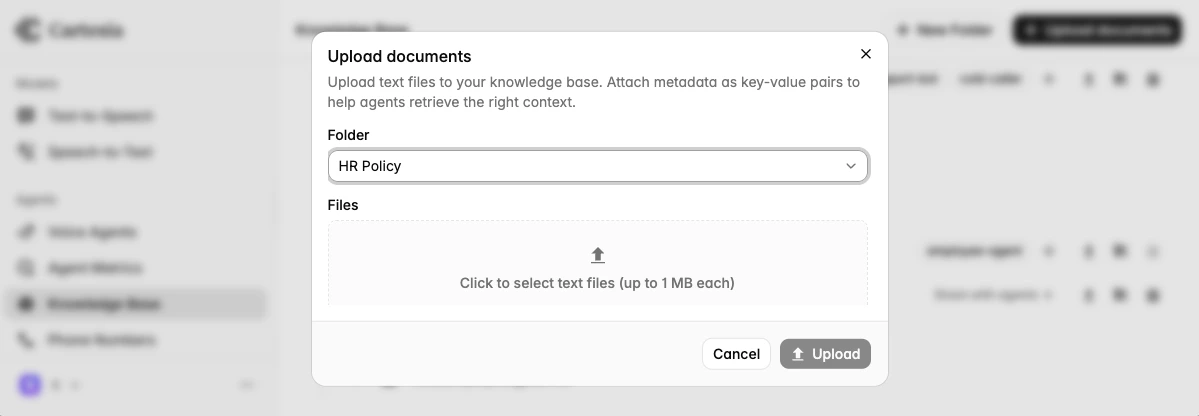 1. Click the **Upload document** icon on the folder you wish to upload documents to.
2. Select the files from your computer
3. Add any metadata you want to [filter by](#filter-syntax) later.
Documents are automatically indexed on upload.
```bash theme={null}
curl -X POST https://api.cartesia.ai/agents/folders \
-H "X-API-Key: $CARTESIA_API_KEY" \
-H "Cartesia-Version: 2026-03-01" \
-H "Content-Type: application/json" \
-d '{"name": "Product Docs", "parent_id": null}'
```
Pass `"parent_id"` to nest the folder. The response includes the folder `id`, which subsequent requests reference.
```bash theme={null}
curl -X POST https://api.cartesia.ai/agents/documents \
-H "X-API-Key: $CARTESIA_API_KEY" \
-H "Cartesia-Version: 2026-03-01" \
-H "Content-Type: application/json" \
-d '{
"folder_id": "folder_abc",
"name": "Return Policy",
"content": "Customers may return any unopened item within 30 days...",
"metadata": {"category": "policy", "audience": "customer"}
}'
```
Documents are automatically indexed on upload. Use `POST /agents/documents/bulk` with a `documents` array to upload up to 100 documents in a single request.
## Associate folders with an agent
Attach folders to an agent to make them queryable from the agent's `knowledge_base` tool. Only folders attached to the agent are searched; an agent with no folders attached returns empty results from every query. Changes take effect immediately for in-progress and future calls.
1. Click the **Upload document** icon on the folder you wish to upload documents to.
2. Select the files from your computer
3. Add any metadata you want to [filter by](#filter-syntax) later.
Documents are automatically indexed on upload.
```bash theme={null}
curl -X POST https://api.cartesia.ai/agents/folders \
-H "X-API-Key: $CARTESIA_API_KEY" \
-H "Cartesia-Version: 2026-03-01" \
-H "Content-Type: application/json" \
-d '{"name": "Product Docs", "parent_id": null}'
```
Pass `"parent_id"` to nest the folder. The response includes the folder `id`, which subsequent requests reference.
```bash theme={null}
curl -X POST https://api.cartesia.ai/agents/documents \
-H "X-API-Key: $CARTESIA_API_KEY" \
-H "Cartesia-Version: 2026-03-01" \
-H "Content-Type: application/json" \
-d '{
"folder_id": "folder_abc",
"name": "Return Policy",
"content": "Customers may return any unopened item within 30 days...",
"metadata": {"category": "policy", "audience": "customer"}
}'
```
Documents are automatically indexed on upload. Use `POST /agents/documents/bulk` with a `documents` array to upload up to 100 documents in a single request.
## Associate folders with an agent
Attach folders to an agent to make them queryable from the agent's `knowledge_base` tool. Only folders attached to the agent are searched; an agent with no folders attached returns empty results from every query. Changes take effect immediately for in-progress and future calls.
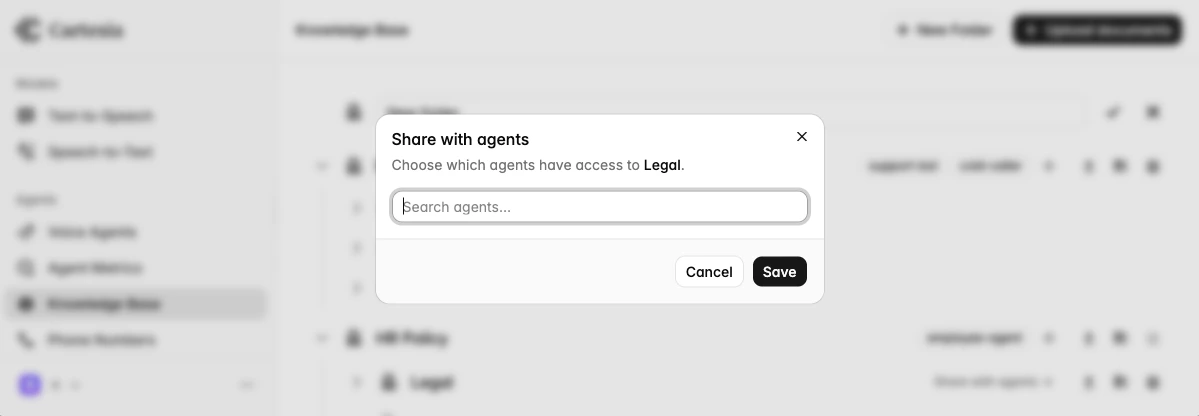 Open your agent, then select the folders to attach in the **Knowledge Base** section. Deselect all folders to detach every folder.
Set `agents` on the folder to the agents that should have it in their knowledge base. Send an empty array to detach the folder from every agent.
In the Playground at [play.cartesia.ai/knowledge-base](https://play.cartesia.ai/knowledge-base), copy the folder ID for the knowledge base you want to connect to your agent before calling this endpoint.
```bash theme={null}
curl -X PATCH https://api.cartesia.ai/agents/folders/$FOLDER_ID \
-H "X-API-Key: $CARTESIA_API_KEY" \
-H "Cartesia-Version: 2026-03-01" \
-H "Content-Type: application/json" \
-d '{
"agents": [
{"id": "agent_abc"},
{"id": "agent_def"}
]
}'
```
## Using the knowledge base from your agent
### `knowledge_base` tool
`knowledge_base` is a built-in tool. Drop it into an agent's `tools` list and the LLM calls it on its own when it needs to look something up.
```python theme={null}
import os
from line.llm_agent import LlmAgent, LlmConfig, end_call, knowledge_base
agent = LlmAgent(
model="anthropic/claude-haiku-4-5-20251001",
api_key=os.getenv("ANTHROPIC_API_KEY"),
tools=[end_call, knowledge_base],
config=LlmConfig(
system_prompt=(
"You are a customer support agent. "
"Use the knowledge_base tool whenever the user asks about products, policies, or pricing."
),
introduction="Hi! How can I help?",
),
)
```
The LLM picks the query string; every other parameter is fixed at construction time.
```python theme={null}
tools=[knowledge_base(
filters={"category": "billing"},
top_k=10,
description="Look up billing and payment policy details.",
timeout_s=2.0,
is_background=True,
)]
```
See [Parameters](#parameters) for the full list of options.
### Call the knowledge base directly
For custom retrieval logic—reranking, post-filtering, fanning out multiple queries—call the `KnowledgeBase` client directly from inside your own tool:
```python theme={null}
from typing import Annotated
from line.llm_agent import loopback_tool
@loopback_tool
async def lookup_policy(
ctx,
topic: Annotated[str, "Policy topic to look up"],
) -> str:
"""Search the policy knowledge base."""
kb = ctx.knowledge_base()
results = await kb.query(
f"policy: {topic}",
filters={"category": "policy"},
top_k=3,
timeout_s=2.0,
)
return "\n\n".join(r["content"] for r in results) or "No policy found."
```
`ctx.knowledge_base()` returns a `KnowledgeBase` instance authenticated with the agent's session-scoped token. No setup is required—the SDK wires this up when the call starts.
`kb.query(...)` raises `KnowledgeBaseError` on timeout, transport failure, or non-200 responses. Catch it if you want to fall back to a different code path; the built-in `knowledge_base` tool already handles this for you.
See below for the options accepted by `kb.query(...)`.
### Parameters
| Parameter | Type | Default | Description |
| --------------- | ------- | --------------------- | --------------------------------------------------------------------------------------------------------------------------------------------------- |
| `filters` | `dict` | `None` | Metadata filter applied to every query. See [Filter syntax](#filter-syntax). |
| `top_k` | `int` | `5` | Number of chunks to return. Higher values give your agent more context, at the cost of more tokens in the context window and higher latency. |
| `description` | `str` | Generic lookup prompt | Tool form only. Fully replaces the tool description shown to the LLM. Tailor it to your domain. |
| `timeout_s` | `float` | `3.0` | Per-call timeout. Values above 10s log a warning, as long running queries stall the call if `is_background` is not enabled. |
| `is_background` | `bool` | `False` | Tool form only. When true, runs as a [background tool](./sdk/tools#long-running-tools) so the agent can keep speaking while the query is in flight. |
### Filter syntax
Filters are a flat `{metadata_key: metadata_value}` map. Each entry is an equality match against a document's metadata; multiple entries are combined with AND.
```python theme={null}
# documents where category == "billing"
filters={"category": "billing"}
# documents where category == "policy" AND audience == "customer"
filters={"category": "policy", "audience": "customer"}
```
Note that folder-based access control is applied automatically, so does not need to be explicitly specified
Open your agent, then select the folders to attach in the **Knowledge Base** section. Deselect all folders to detach every folder.
Set `agents` on the folder to the agents that should have it in their knowledge base. Send an empty array to detach the folder from every agent.
In the Playground at [play.cartesia.ai/knowledge-base](https://play.cartesia.ai/knowledge-base), copy the folder ID for the knowledge base you want to connect to your agent before calling this endpoint.
```bash theme={null}
curl -X PATCH https://api.cartesia.ai/agents/folders/$FOLDER_ID \
-H "X-API-Key: $CARTESIA_API_KEY" \
-H "Cartesia-Version: 2026-03-01" \
-H "Content-Type: application/json" \
-d '{
"agents": [
{"id": "agent_abc"},
{"id": "agent_def"}
]
}'
```
## Using the knowledge base from your agent
### `knowledge_base` tool
`knowledge_base` is a built-in tool. Drop it into an agent's `tools` list and the LLM calls it on its own when it needs to look something up.
```python theme={null}
import os
from line.llm_agent import LlmAgent, LlmConfig, end_call, knowledge_base
agent = LlmAgent(
model="anthropic/claude-haiku-4-5-20251001",
api_key=os.getenv("ANTHROPIC_API_KEY"),
tools=[end_call, knowledge_base],
config=LlmConfig(
system_prompt=(
"You are a customer support agent. "
"Use the knowledge_base tool whenever the user asks about products, policies, or pricing."
),
introduction="Hi! How can I help?",
),
)
```
The LLM picks the query string; every other parameter is fixed at construction time.
```python theme={null}
tools=[knowledge_base(
filters={"category": "billing"},
top_k=10,
description="Look up billing and payment policy details.",
timeout_s=2.0,
is_background=True,
)]
```
See [Parameters](#parameters) for the full list of options.
### Call the knowledge base directly
For custom retrieval logic—reranking, post-filtering, fanning out multiple queries—call the `KnowledgeBase` client directly from inside your own tool:
```python theme={null}
from typing import Annotated
from line.llm_agent import loopback_tool
@loopback_tool
async def lookup_policy(
ctx,
topic: Annotated[str, "Policy topic to look up"],
) -> str:
"""Search the policy knowledge base."""
kb = ctx.knowledge_base()
results = await kb.query(
f"policy: {topic}",
filters={"category": "policy"},
top_k=3,
timeout_s=2.0,
)
return "\n\n".join(r["content"] for r in results) or "No policy found."
```
`ctx.knowledge_base()` returns a `KnowledgeBase` instance authenticated with the agent's session-scoped token. No setup is required—the SDK wires this up when the call starts.
`kb.query(...)` raises `KnowledgeBaseError` on timeout, transport failure, or non-200 responses. Catch it if you want to fall back to a different code path; the built-in `knowledge_base` tool already handles this for you.
See below for the options accepted by `kb.query(...)`.
### Parameters
| Parameter | Type | Default | Description |
| --------------- | ------- | --------------------- | --------------------------------------------------------------------------------------------------------------------------------------------------- |
| `filters` | `dict` | `None` | Metadata filter applied to every query. See [Filter syntax](#filter-syntax). |
| `top_k` | `int` | `5` | Number of chunks to return. Higher values give your agent more context, at the cost of more tokens in the context window and higher latency. |
| `description` | `str` | Generic lookup prompt | Tool form only. Fully replaces the tool description shown to the LLM. Tailor it to your domain. |
| `timeout_s` | `float` | `3.0` | Per-call timeout. Values above 10s log a warning, as long running queries stall the call if `is_background` is not enabled. |
| `is_background` | `bool` | `False` | Tool form only. When true, runs as a [background tool](./sdk/tools#long-running-tools) so the agent can keep speaking while the query is in flight. |
### Filter syntax
Filters are a flat `{metadata_key: metadata_value}` map. Each entry is an equality match against a document's metadata; multiple entries are combined with AND.
```python theme={null}
# documents where category == "billing"
filters={"category": "billing"}
# documents where category == "policy" AND audience == "customer"
filters={"category": "policy", "audience": "customer"}
```
Note that folder-based access control is applied automatically, so does not need to be explicitly specified