> ## Documentation Index
> Fetch the complete documentation index at: https://docs.cartesia.ai/llms.txt
> Use this file to discover all available pages before exploring further.
# Twilio Integration
> Connect your existing Twilio account and import your existing phone numbers.
Connect your existing Twilio numbers for inbound and outbound use-cases — including international numbers.
## Prerequisites
* A [Twilio account](https://www.twilio.com/try-twilio) with at least one phone number
* A [Cartesia account](https://play.cartesia.ai) with an API key
## Setup
### Step 1: Create a Twilio Subaccount (Recommended)
A dedicated subaccount makes it easy to manage numbers and credentials imported to Cartesia within your broader Twilio setup.
1. Open the [Twilio Console](https://console.twilio.com)
2. Go to **Account** → **Subaccounts** → **Create new Subaccount**
3. Name it (e.g., `cartesia-production`)
4. Copy the **Account SID**
You can also use your main Twilio account directly. Subaccounts are recommended but not required.
### Step 2: Create an API Key
Create a Standard API key in your Twilio subaccount. API keys are preferred over auth tokens because they can be rotated independently.
1. In your subaccount, go to **Account** → **API keys & tokens** or visit the console [here](https://console.twilio.com/us1/account/keys-credentials/api-keys/create)
2. Click **Create API Key** → choose **Standard**
3. Save the **SID** and **Secret** in a password manager
Copy and store the API key secret immediately. Twilio only shows it once. If you lose it, create a new key.
If you plan to import phone numbers from multiple regions, create a separate API key for each region. See [Regional Routing](/line/integrations/telephony/twilio/regional-routing).
### Step 3: Connect Your Twilio Account
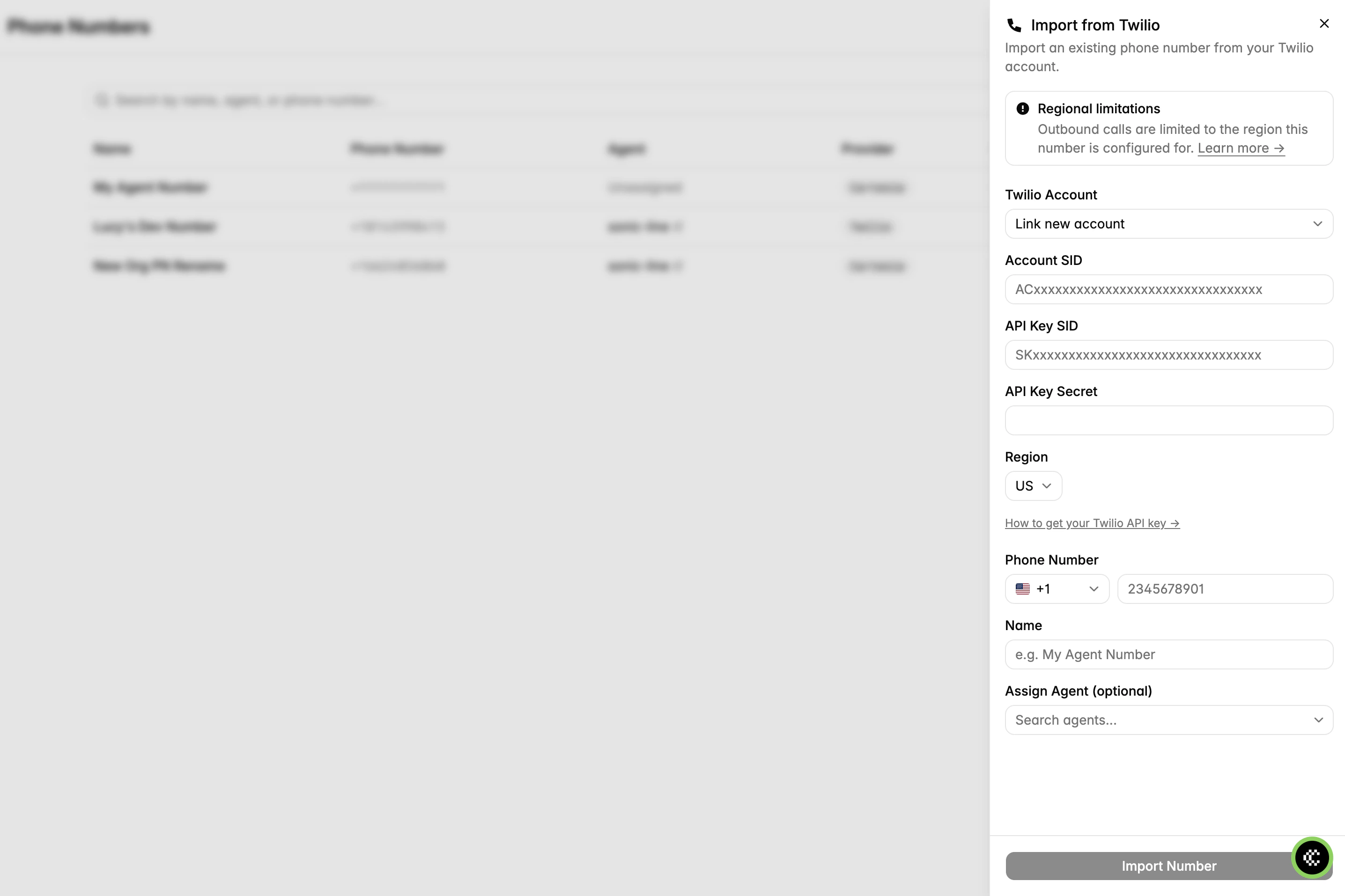
Add your Twilio credentials to your Cartesia account. They will be validated against Twilio before saving.
1. Go to **Phone Numbers** → click **Add Number** → **Import from Twilio**
2. Select **Link new account**
3. Enter your Account SID, API Key SID, API Key Secret, and region
 ```bash theme={null}
curl -X POST "https://api.cartesia.ai/agents/phone-numbers/providers" \
-H "Authorization: Bearer $CARTESIA_API_KEY" \
-H "Content-Type: application/json" \
-H "Cartesia-Version: 2025-04-16" \
-d '{
"type": "twilio",
"account_sid": "YOUR_TWILIO_ACCOUNT_SID",
"api_key_sid": "YOUR_API_KEY_SID",
"api_key_secret": "YOUR_API_KEY_SECRET",
"region": "us1"
}'
```
### Step 4: Import a Phone Number
Import a number you already own in your Twilio account.
1. In the same **Import from Twilio** panel, enter your phone number with country code (e.g., `+14155551234`)
2. Give it a name
3. Optionally assign an agent — you can do this later too!
```bash theme={null}
curl -X POST "https://api.cartesia.ai/agents/phone-numbers" \
-H "Authorization: Bearer $CARTESIA_API_KEY" \
-H "Content-Type: application/json" \
-H "Cartesia-Version: 2025-04-16" \
-d '{
"label": "Support Line",
"number": "+14155551234",
"provider": { "id": "YOUR_PROVIDER_ID" }
}'
```
The phone number must already exist in your Twilio account. Cartesia does not purchase numbers on your behalf.
### Step 5: Assign to an Agent
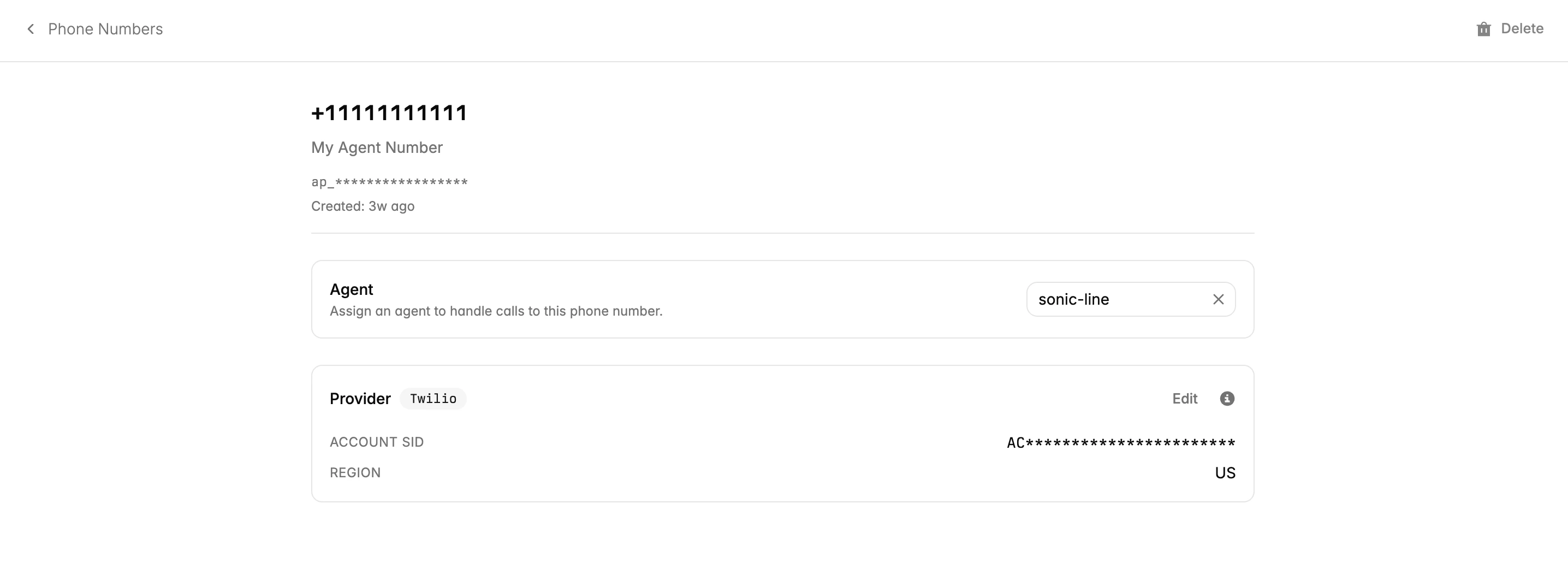
Assign a number to an agent so inbound calls are routed to it. You can assign multiple numbers to the same agent.
1. Click on a phone number to open its detail page
2. In the **Agent** card, search for and select your agent
```bash theme={null}
curl -X POST "https://api.cartesia.ai/agents/phone-numbers/providers" \
-H "Authorization: Bearer $CARTESIA_API_KEY" \
-H "Content-Type: application/json" \
-H "Cartesia-Version: 2025-04-16" \
-d '{
"type": "twilio",
"account_sid": "YOUR_TWILIO_ACCOUNT_SID",
"api_key_sid": "YOUR_API_KEY_SID",
"api_key_secret": "YOUR_API_KEY_SECRET",
"region": "us1"
}'
```
### Step 4: Import a Phone Number
Import a number you already own in your Twilio account.
1. In the same **Import from Twilio** panel, enter your phone number with country code (e.g., `+14155551234`)
2. Give it a name
3. Optionally assign an agent — you can do this later too!
```bash theme={null}
curl -X POST "https://api.cartesia.ai/agents/phone-numbers" \
-H "Authorization: Bearer $CARTESIA_API_KEY" \
-H "Content-Type: application/json" \
-H "Cartesia-Version: 2025-04-16" \
-d '{
"label": "Support Line",
"number": "+14155551234",
"provider": { "id": "YOUR_PROVIDER_ID" }
}'
```
The phone number must already exist in your Twilio account. Cartesia does not purchase numbers on your behalf.
### Step 5: Assign to an Agent
Assign a number to an agent so inbound calls are routed to it. You can assign multiple numbers to the same agent.
1. Click on a phone number to open its detail page
2. In the **Agent** card, search for and select your agent
 ```zsh lines theme={null}
cartesia phone-numbers assign --agent-id
```
To unassign:
```zsh lines theme={null}
cartesia phone-numbers unassign
```
List your Twilio numbers to find phone number IDs:
```zsh lines theme={null}
cartesia phone-numbers ls --type twilio
```
```bash theme={null}
curl -X PATCH "https://api.cartesia.ai/agents/phone-numbers/YOUR_PHONE_NUMBER_ID" \
-H "Authorization: Bearer $CARTESIA_API_KEY" \
-H "Content-Type: application/json" \
-H "Cartesia-Version: 2025-04-16" \
-d '{
"agent_id": "YOUR_AGENT_ID"
}'
```
To unassign, set `agent_id` to `null`.
## Inbound Calls
When someone calls your Twilio number, they're connected to the assigned Cartesia agent.
You may assign multiple numbers to the same agent for different regions or use-cases — for example, a US support line and a UK support line both handled by one agent.
## Outbound Calls
Your agent can initiate calls to any phone number, including international ones at standard Twilio rates.
Trigger outbound calls from the agent's page or via the CLI:
```bash theme={null}
cartesia call
```
```bash theme={null}
curl -X POST "https://api.cartesia.ai/twilio/call/outbound" \
-H "Authorization: Bearer $CARTESIA_API_KEY" \
-H "Content-Type: application/json" \
-H "Cartesia-Version: 2025-04-16" \
-d '{
"target_numbers": ["+442012345678"],
"agent_id": "YOUR_AGENT_ID"
}'
```
Outbound calls use the credentials tied to the phone number's provider. A `us1` provider routes through the US Twilio edge; an `ie1` provider routes through Ireland. See [Regional Routing](/line/integrations/telephony/twilio/regional-routing) for details.
## Credential Rotation
Rotate your Twilio API key without downtime:
1. Create a new API key in Twilio (Step 2 above)
2. Update the provider in Cartesia:
Go to **Phone Numbers** → **Settings** and update the credentials for your Twilio account.
```bash theme={null}
curl -X PATCH "https://api.cartesia.ai/agents/phone-numbers/providers/YOUR_PROVIDER_ID" \
-H "Authorization: Bearer $CARTESIA_API_KEY" \
-H "Content-Type: application/json" \
-H "Cartesia-Version: 2025-04-16" \
-d '{
"type": "twilio",
"api_key_sid": "NEW_API_KEY_SID",
"api_key_secret": "NEW_API_KEY_SECRET",
"region": "us1"
}'
```
Cartesia validates the new credentials and checks that all phone numbers on the provider are reachable before applying the update.
3. Revoke the old key in the Twilio console
## Removing a Number
You must unassign an imported phone number before deleting it. Deleting a Twilio number from Cartesia does not remove it from your Twilio account. The number remains available in Twilio for other use.
## What's Next
* [Place your first outbound call](/line/integrations/telephony/outbound-dialing)
* [Set up regional routing](/line/integrations/telephony/twilio/regional-routing) for multi-region deployments
* Explore the [Phone Numbers API](/api-reference/agents/phone-numbers/list) and [Providers API](/api-reference/agents/providers/list)
```zsh lines theme={null}
cartesia phone-numbers assign --agent-id
```
To unassign:
```zsh lines theme={null}
cartesia phone-numbers unassign
```
List your Twilio numbers to find phone number IDs:
```zsh lines theme={null}
cartesia phone-numbers ls --type twilio
```
```bash theme={null}
curl -X PATCH "https://api.cartesia.ai/agents/phone-numbers/YOUR_PHONE_NUMBER_ID" \
-H "Authorization: Bearer $CARTESIA_API_KEY" \
-H "Content-Type: application/json" \
-H "Cartesia-Version: 2025-04-16" \
-d '{
"agent_id": "YOUR_AGENT_ID"
}'
```
To unassign, set `agent_id` to `null`.
## Inbound Calls
When someone calls your Twilio number, they're connected to the assigned Cartesia agent.
You may assign multiple numbers to the same agent for different regions or use-cases — for example, a US support line and a UK support line both handled by one agent.
## Outbound Calls
Your agent can initiate calls to any phone number, including international ones at standard Twilio rates.
Trigger outbound calls from the agent's page or via the CLI:
```bash theme={null}
cartesia call
```
```bash theme={null}
curl -X POST "https://api.cartesia.ai/twilio/call/outbound" \
-H "Authorization: Bearer $CARTESIA_API_KEY" \
-H "Content-Type: application/json" \
-H "Cartesia-Version: 2025-04-16" \
-d '{
"target_numbers": ["+442012345678"],
"agent_id": "YOUR_AGENT_ID"
}'
```
Outbound calls use the credentials tied to the phone number's provider. A `us1` provider routes through the US Twilio edge; an `ie1` provider routes through Ireland. See [Regional Routing](/line/integrations/telephony/twilio/regional-routing) for details.
## Credential Rotation
Rotate your Twilio API key without downtime:
1. Create a new API key in Twilio (Step 2 above)
2. Update the provider in Cartesia:
Go to **Phone Numbers** → **Settings** and update the credentials for your Twilio account.
```bash theme={null}
curl -X PATCH "https://api.cartesia.ai/agents/phone-numbers/providers/YOUR_PROVIDER_ID" \
-H "Authorization: Bearer $CARTESIA_API_KEY" \
-H "Content-Type: application/json" \
-H "Cartesia-Version: 2025-04-16" \
-d '{
"type": "twilio",
"api_key_sid": "NEW_API_KEY_SID",
"api_key_secret": "NEW_API_KEY_SECRET",
"region": "us1"
}'
```
Cartesia validates the new credentials and checks that all phone numbers on the provider are reachable before applying the update.
3. Revoke the old key in the Twilio console
## Removing a Number
You must unassign an imported phone number before deleting it. Deleting a Twilio number from Cartesia does not remove it from your Twilio account. The number remains available in Twilio for other use.
## What's Next
* [Place your first outbound call](/line/integrations/telephony/outbound-dialing)
* [Set up regional routing](/line/integrations/telephony/twilio/regional-routing) for multi-region deployments
* Explore the [Phone Numbers API](/api-reference/agents/phone-numbers/list) and [Providers API](/api-reference/agents/providers/list)