> ## Documentation Index
> Fetch the complete documentation index at: https://docs.cartesia.ai/llms.txt
> Use this file to discover all available pages before exploring further.
# Set up an organization
Organization workspaces enable seamless collaboration between multiple team members. All users in an organization share the same view of resources, including voices, API keys, and datasets. The only exceptions are playground generation history and starred voices, which remain private to each individual user.
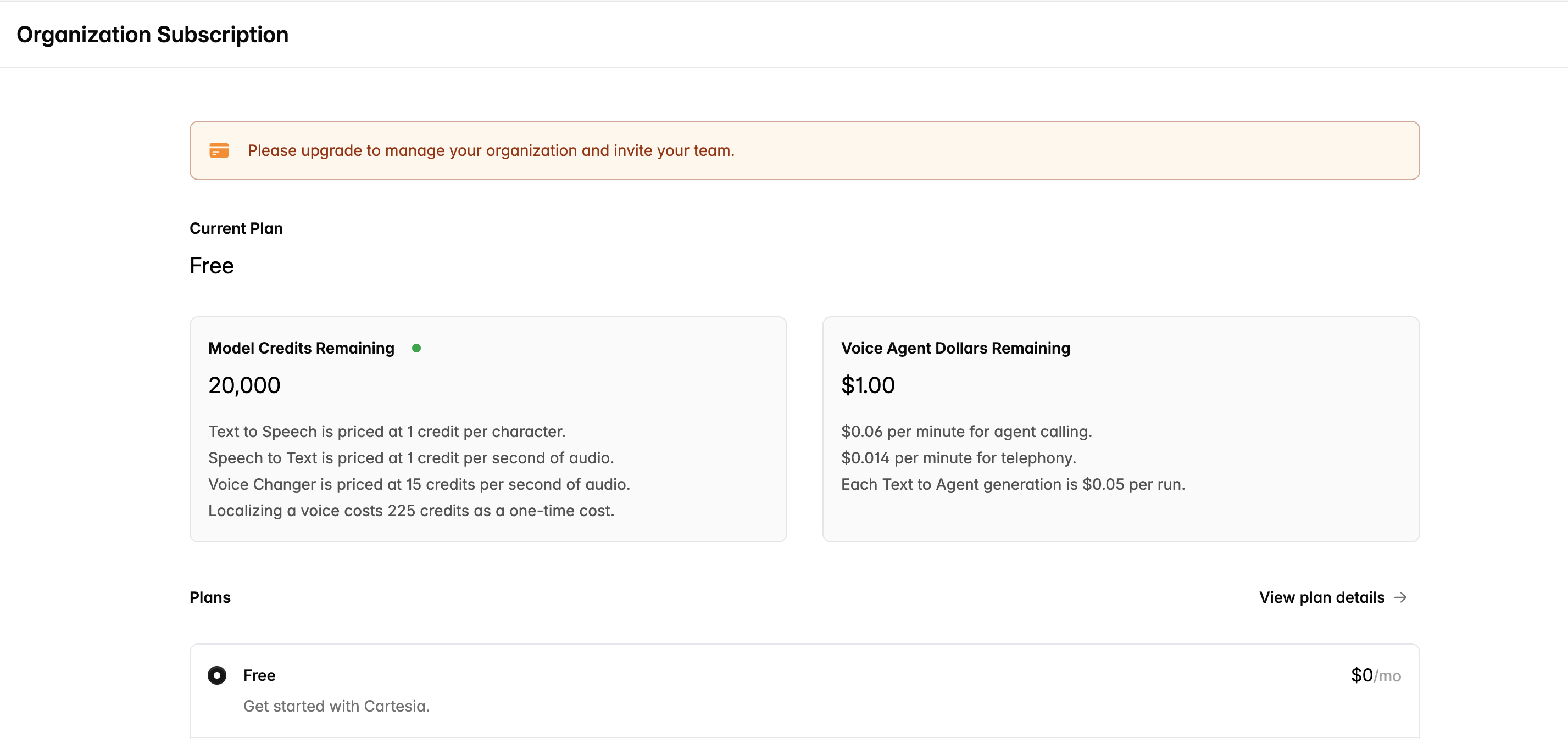
By default, your Cartesia account initializes as an organization workspace on the Free subscription plan with a limit of one member.
To invite team members, you must first upgrade your organization to the
Startup tier or higher. After upgrading, you can invite unlimited users at no
additional cost.
## Manage your organization
Organizations must be upgraded to the Startup tier or above before team members can be invited. Each workspace has its own billing and credit limits, so make sure you are on the intended organization before proceeding to upgrade your subscription.
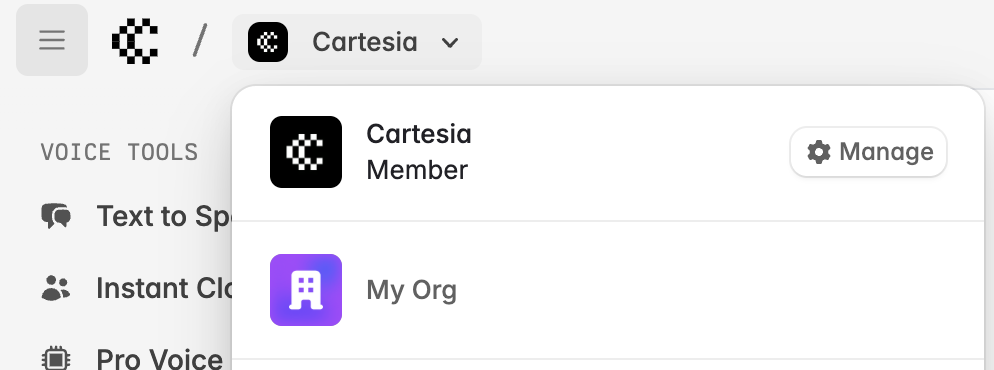
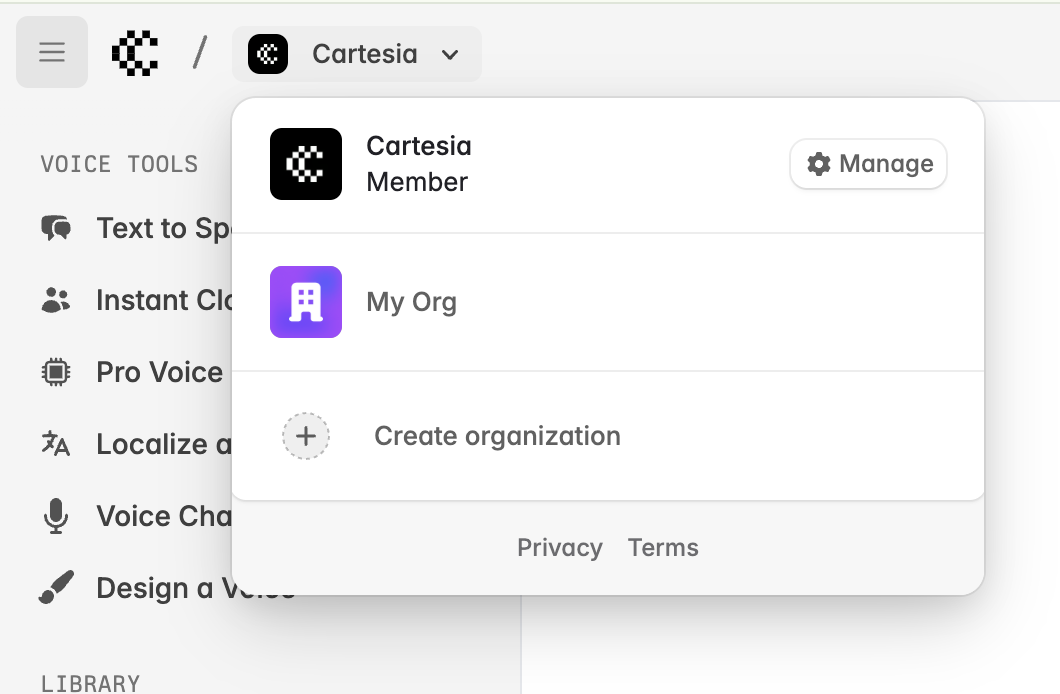
 Once you've upgraded your organization, you can use the "Manage" button in the workspace switcher to manage it:
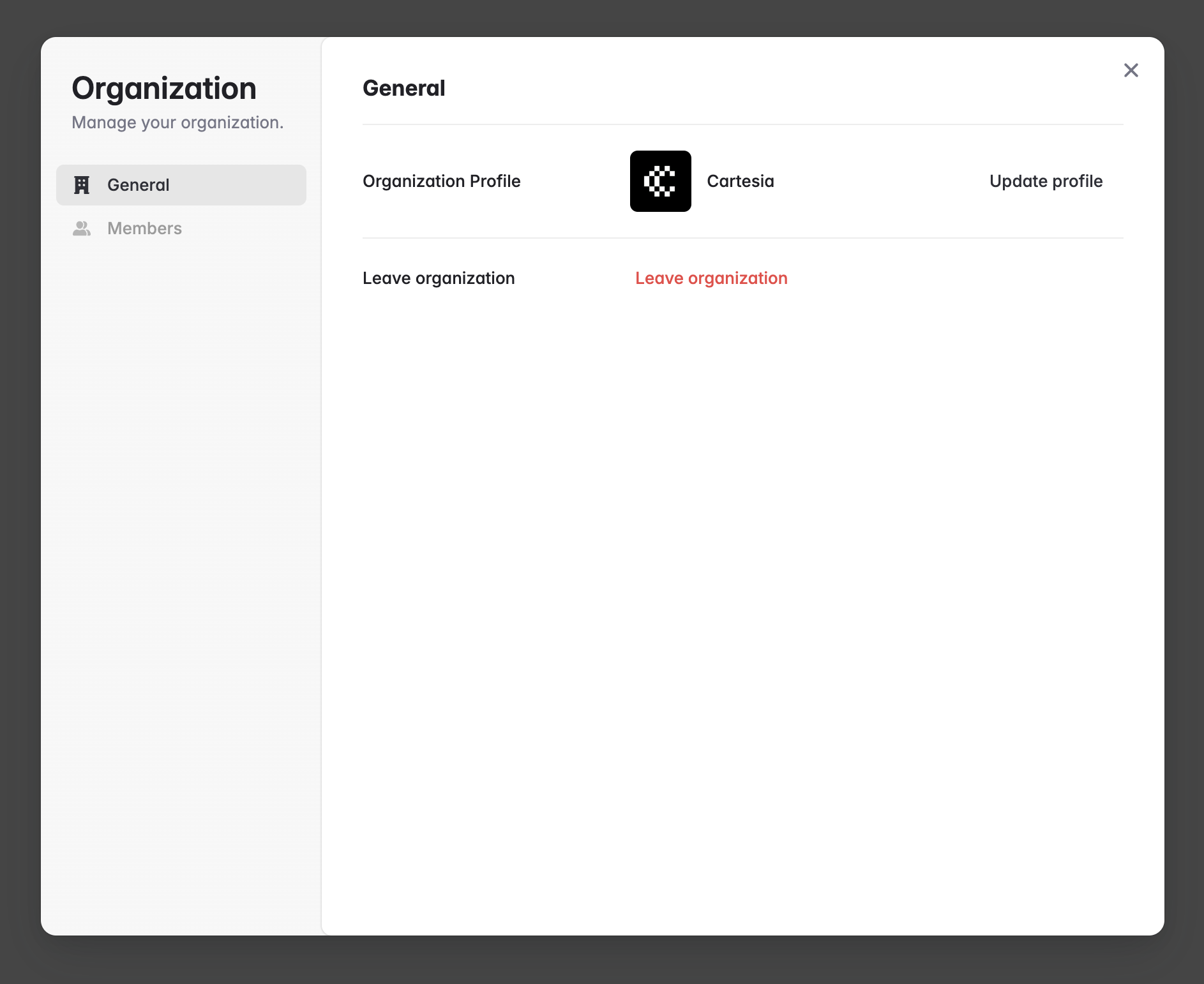
 This pops up a modal where you can change your profile and invite your team:
 There are two membership types in an organizaton:
1. Admin: has the ability to manage the organization profile, invitations, and members.
2. Member: can use all functionality included in the subscription, but cannot alter organization settings.
There are two membership types in an organizaton:
1. Admin: has the ability to manage the organization profile, invitations, and members.
2. Member: can use all functionality included in the subscription, but cannot alter organization settings.
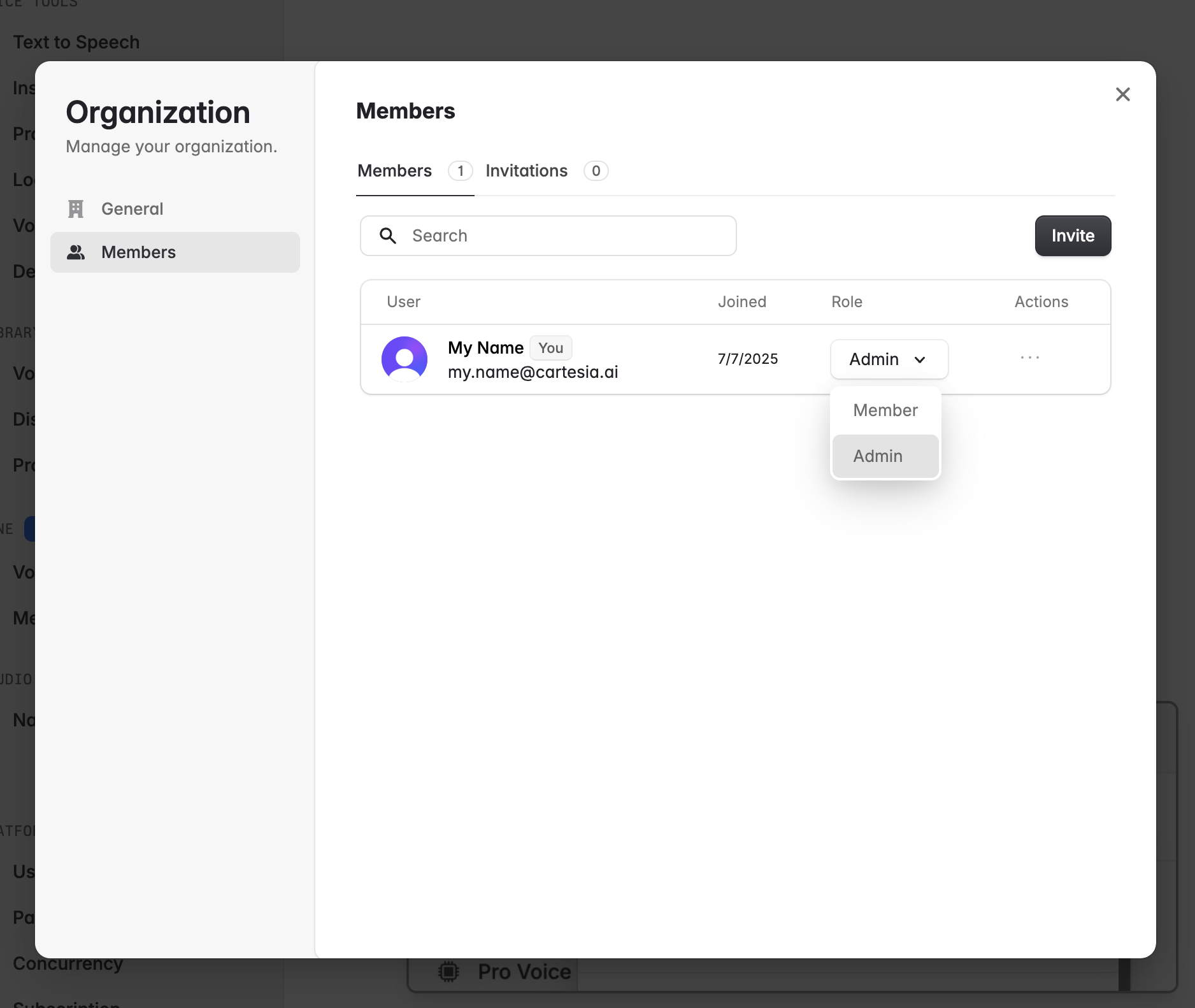 You can invite unlimited team members in an organization once it is on Startup tier or higher.
Once your organization is upgraded, voices, Line agents, API keys, and other resources will be available to all users in the organization.
## Create additional organizations
If you want separate workspaces on different subscriptions, you can create another organization by going to the playground at [https://play.cartesia.ai](https://play.cartesia.ai), selecting the workspace switcher, and clicking **Create organization**.
You can invite unlimited team members in an organization once it is on Startup tier or higher.
Once your organization is upgraded, voices, Line agents, API keys, and other resources will be available to all users in the organization.
## Create additional organizations
If you want separate workspaces on different subscriptions, you can create another organization by going to the playground at [https://play.cartesia.ai](https://play.cartesia.ai), selecting the workspace switcher, and clicking **Create organization**.
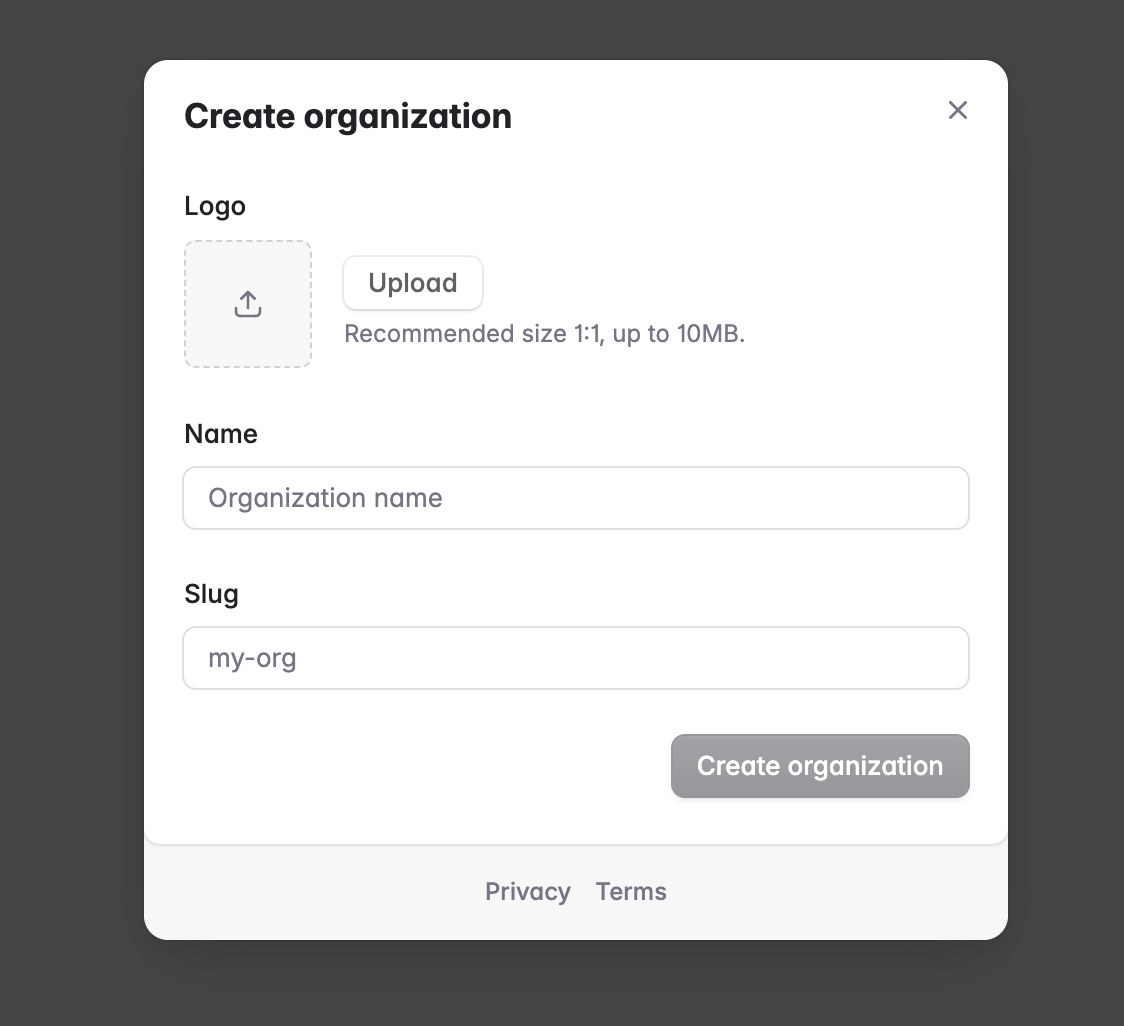
 This will bring up a dialog where you can name your organization and upload a logo.
 Please reach out to us at [support@cartesia.ai](mailto:support@cartesia.ai) if you run into any troubles with your organization.